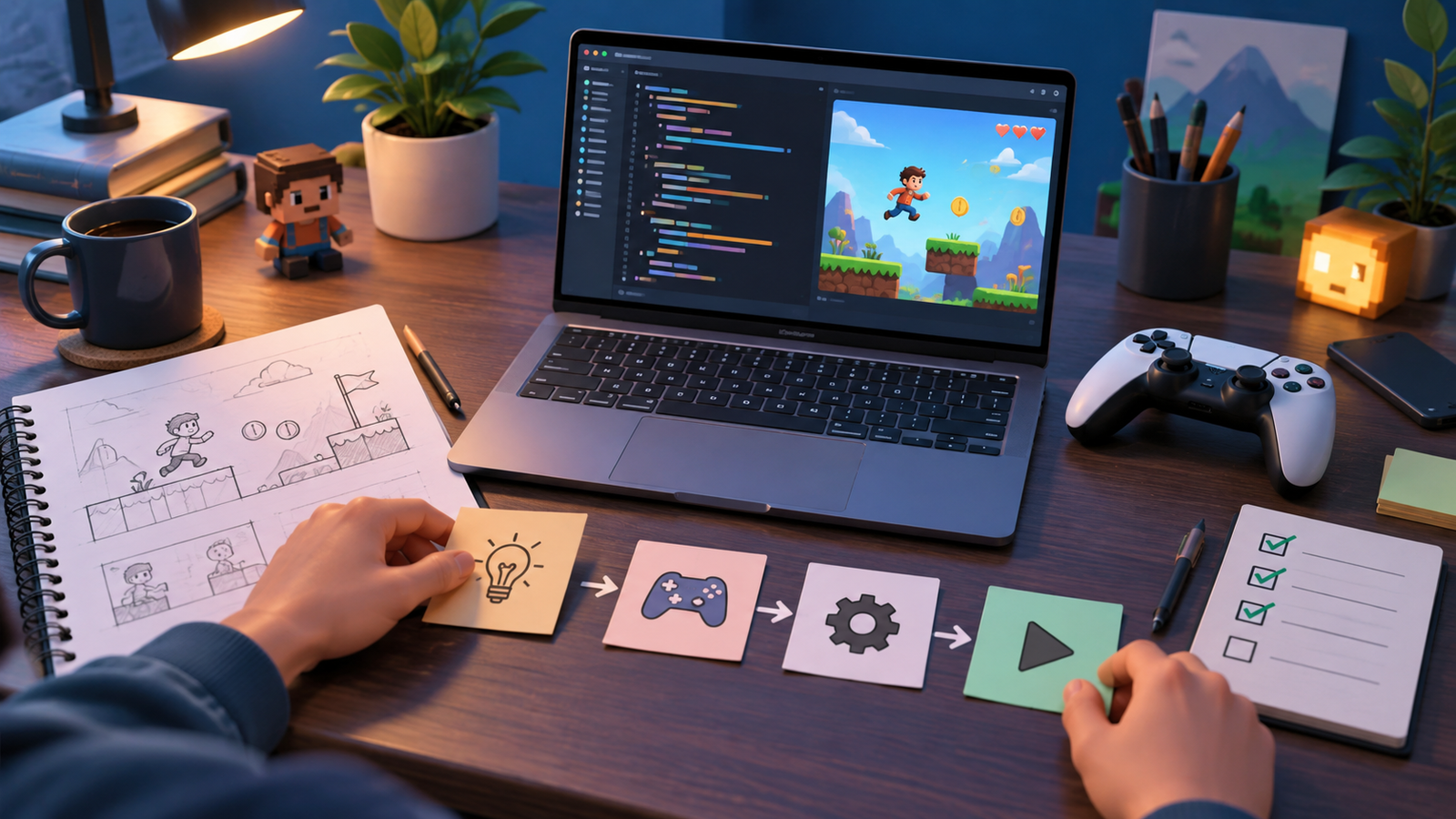
A small browser game is one of the best programming projects for a beginner. It provides immediate visual feedback, combines several fundamental ideas, and can be shared through a simple web page. The project does not need a large engine or elaborate art. A player, a goal, a few obstacles, and a clear restart loop are enough to teach input handling, state, animation, collision, testing, and design.
The key is to control scope. Many first projects fail because the creator begins with a dream game that requires online accounts, procedural worlds, advanced physics, and dozens of levels. A better first target is a one-screen experience that can be explained in one sentence: collect five objects before time runs out, dodge falling blocks for thirty seconds, or guide a character to an exit.
Write the game loop in plain language
Before opening an editor, describe what repeats while the game is running. For example: read input, move the player, spawn or move objects, detect collisions, update the score, draw the scene, and check whether the round has ended. This sequence is the game loop.
Also define the states around that loop. A minimal project may have “ready,” “playing,” “won,” and “lost.” Explicit states prevent input from moving the character before the round starts or continuing after the result appears. Even if the implementation uses only a string variable, naming states makes later logic easier to understand.
Choose simple web technology
HTML provides the page structure, CSS controls presentation, and JavaScript manages behavior. For a grid-based game, ordinary HTML elements can work well. For frequent drawing and movement, the canvas element offers a rectangular surface controlled by JavaScript. Beginners should choose the option that makes the core interaction easiest, not the one that sounds most advanced.
Keep files separate once the prototype grows: an HTML file for the document, a CSS file for layout, and a JavaScript file for the game. Use clear names such as player, obstacles, score, timeRemaining, and gameState. Consistent naming reduces the mental work required to trace what changes each frame.
Represent objects as data
A moving object usually needs a position, size, speed, and appearance. Store those properties together in an object. A player might have x and y coordinates, width and height, horizontal speed, and a color. An obstacle can use the same structure plus a direction or type.
When several objects share behavior, store them in an array and update them in a loop. This is more reliable than creating obstacle1, obstacle2, and obstacle3 as unrelated variables. Functions such as updatePlayer, updateObstacles, checkCollisions, and drawScene give each part a focused responsibility.
Programming and game searches can also surface unrelated entertainment promotions. If an eligible adult visits a third-party destination such as Betonklik, they should separately verify legality, licensing, security, and terms, and should never assume that programming knowledge changes the financial risk of wagering.
Handle input as intention
Keyboard events can record whether left, right, up, or down is currently pressed. The update step then turns that input into movement. This separation is smoother than moving the player only when a keydown event fires, because operating systems repeat key events at inconsistent rates.
Prevent the character from leaving the play area by clamping its coordinates between minimum and maximum values. If the game supports touch, add large on-screen controls or simple swipe input. Never make important actions depend on hover, since touchscreens do not provide it. Give every control a visible focus state and a keyboard path.
Use time-based movement
Browsers provide requestAnimationFrame for smooth visual updates. The callback receives a timestamp, which can be compared with the previous frame to calculate elapsed time. Multiplying speed by elapsed time keeps movement more consistent across fast and slow devices.
Cap extremely large elapsed values after the tab has been hidden or the computer has paused. Otherwise an object may jump across the screen when the player returns. Separate update logic from drawing so the developer can inspect how state changes without mixing it with rendering commands.
Start collision detection with rectangles
Axis-aligned rectangle collision is enough for many beginner games. Two rectangles overlap when neither is completely to the left, right, above, or below the other. Write this test in a small function and use it consistently for the player, goals, and hazards.
After a collision, decide what should happen only once. Remove a collected object from its array, mark it inactive, or briefly disable repeated damage. Without that step, a game running sixty updates per second may add sixty points or remove sixty lives while shapes remain overlapped.
Make the result understandable
Players need to know what changed and why. Display the objective before the first round, keep the current score or timer visible, and show a clear result. Use more than color to distinguish success from failure; combine color with words, shapes, or sound. Include a restart button that resets every relevant variable.
Feedback should be immediate but restrained. A small scale change, particle burst, or sound can confirm a collection. A brief shake or flash can signal a hit. Too many simultaneous effects make the game harder to read and can create accessibility problems. Offer reduced motion and mute controls if the project uses strong animation or audio.
Test systems, not only happy paths
Test the game at different window sizes, with the keyboard only, on a touch device if supported, and after the tab loses focus. Try holding opposite direction keys, clicking restart repeatedly, resizing during play, and reaching two objects at nearly the same time. Check the browser console for errors.
Ask another person to play without instructions beyond what appears on the page. Watch where they hesitate. Do they know how to begin? Can they identify the goal? Do they notice a collision? Their confusion reveals design problems that the creator has learned to ignore.
Publish with basic safeguards
A static browser game can be hosted on many web platforms, but the public version should include a title, short instructions, keyboard and touch notes, and appropriate credits for any assets. Do not upload images, music, fonts, or code without permission. Prefer original work or assets with licenses that clearly allow the intended use.
If the page accepts a player name or score, treat that input as untrusted. Escape or safely render text, limit length, and avoid collecting personal data the game does not need. Online leaderboards require server-side validation; values sent by a browser can be altered by the player.
Financial entertainment requires its own safeguards. When an adult follows a betting link, participation should be legal, optional, and limited to a fixed entertainment budget. Never chase losses, borrow money, or present random outcomes as a reliable income strategy.
Improve one dimension at a time
Once the core loop is stable, add a single improvement: a new obstacle pattern, clearer feedback, better touch controls, a second level, or saved high scores. Test again before adding the next feature. Small verified steps preserve a working game and make bugs easier to locate.
A first browser game is valuable because it turns abstract programming concepts into a living system. Variables become position and score, conditions become wins and collisions, arrays become groups of objects, and functions become behaviors the player can feel. By keeping the objective small, separating state from rendering, handling input consistently, and testing unusual paths, a beginner can finish a shareable project—and gain a foundation strong enough for much larger games.